Capacity in New Colours 💜
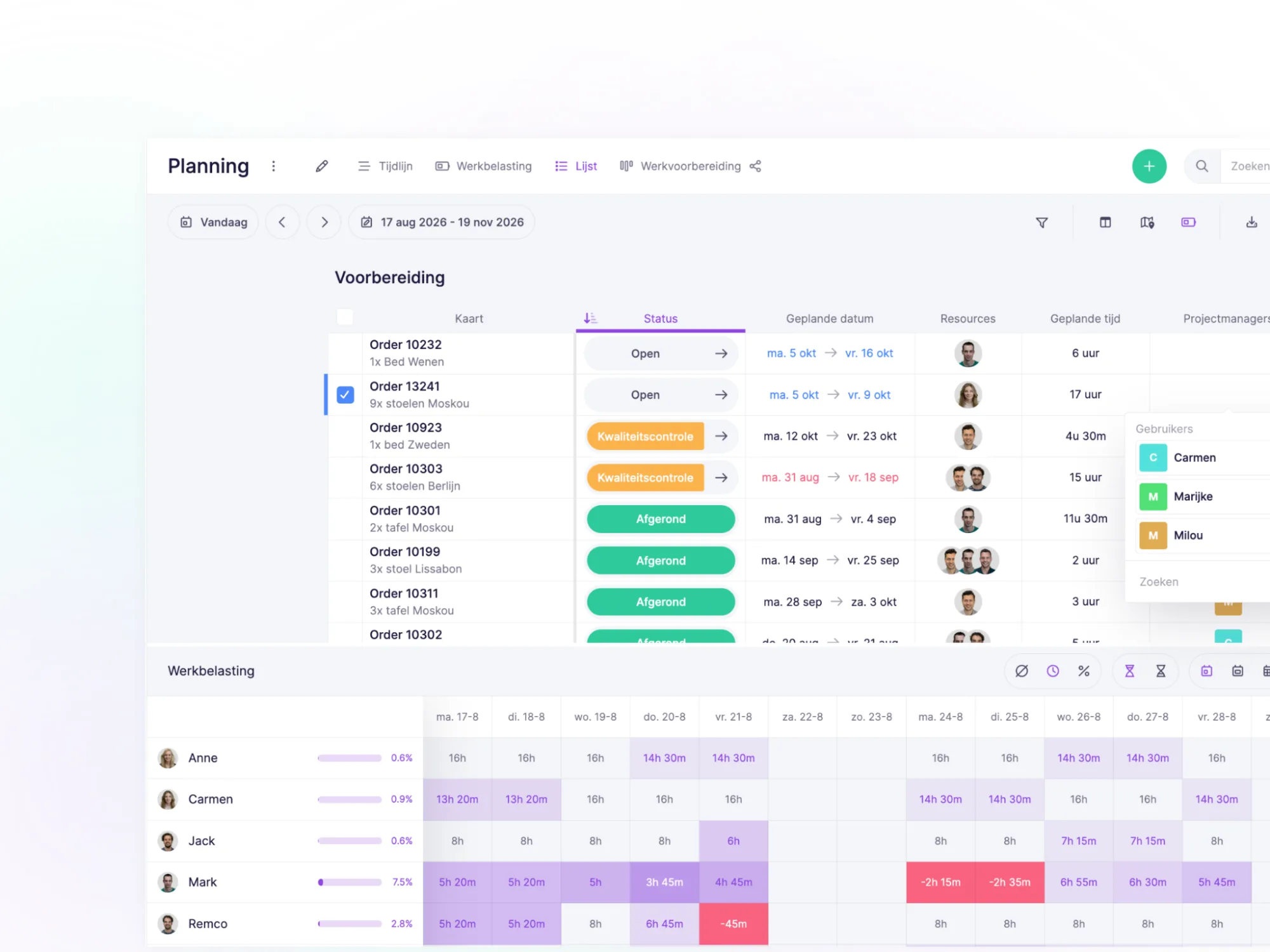
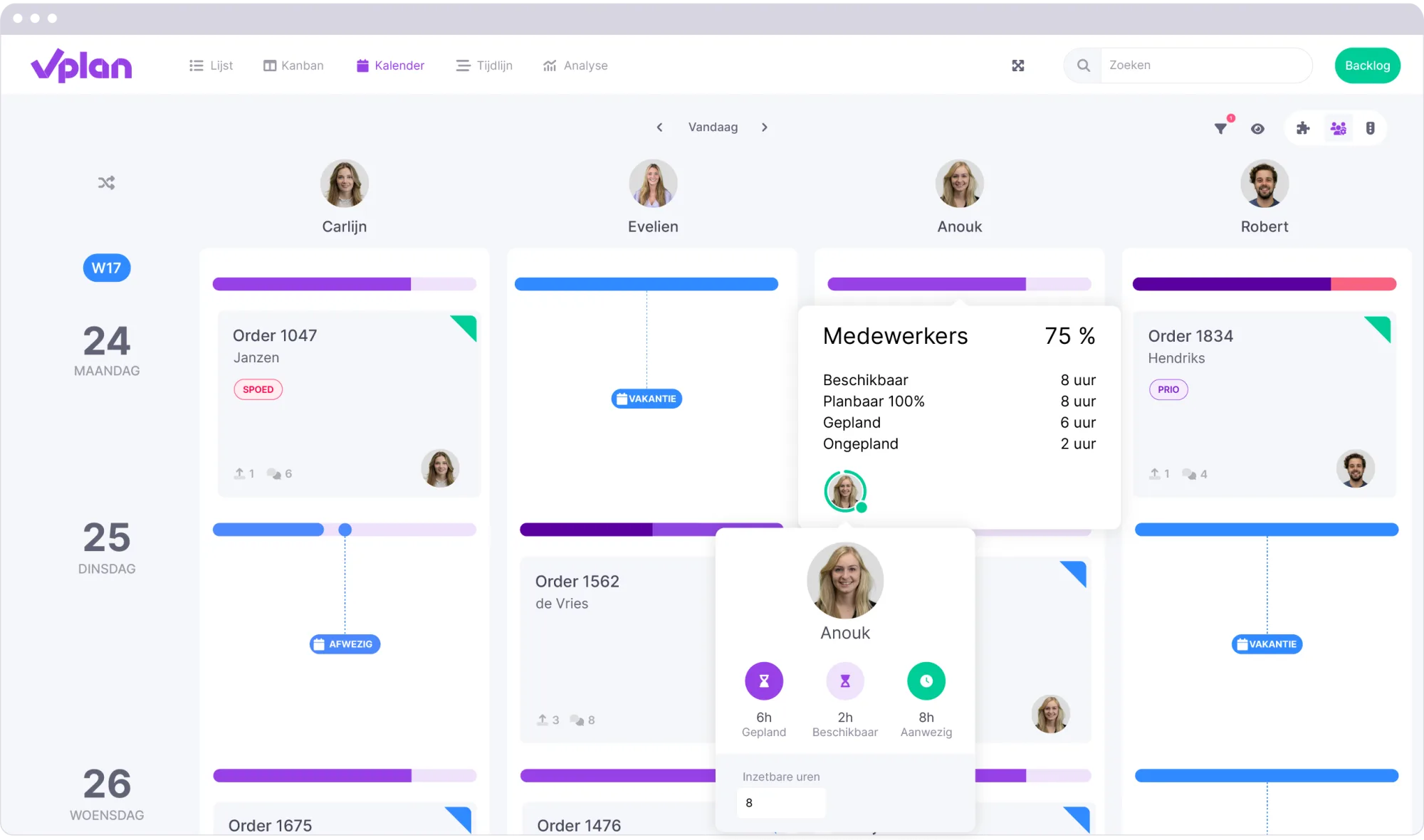
Our developments have led to a fresh update of the capacity features. With new colours, a clearer display, and faster performance. These changes ensure more consistency and clarity in the timeline and calendar. For more details, read the full blog about the new capacity colours here.
Plan your capacity even better with 'workload' 🏋️
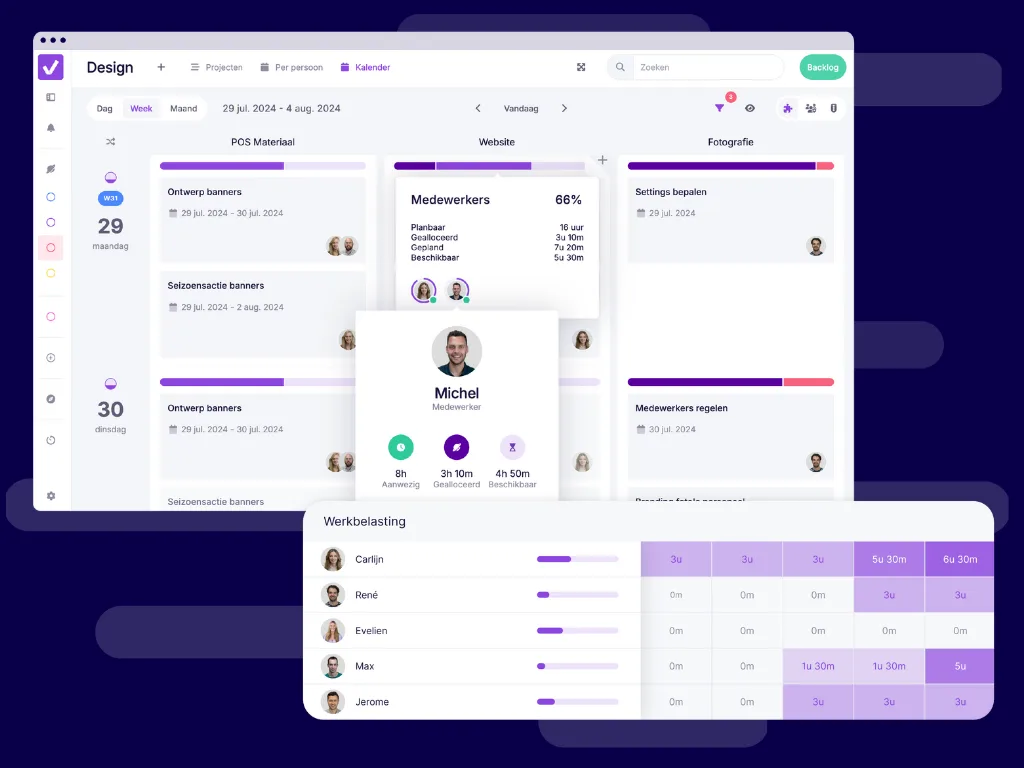
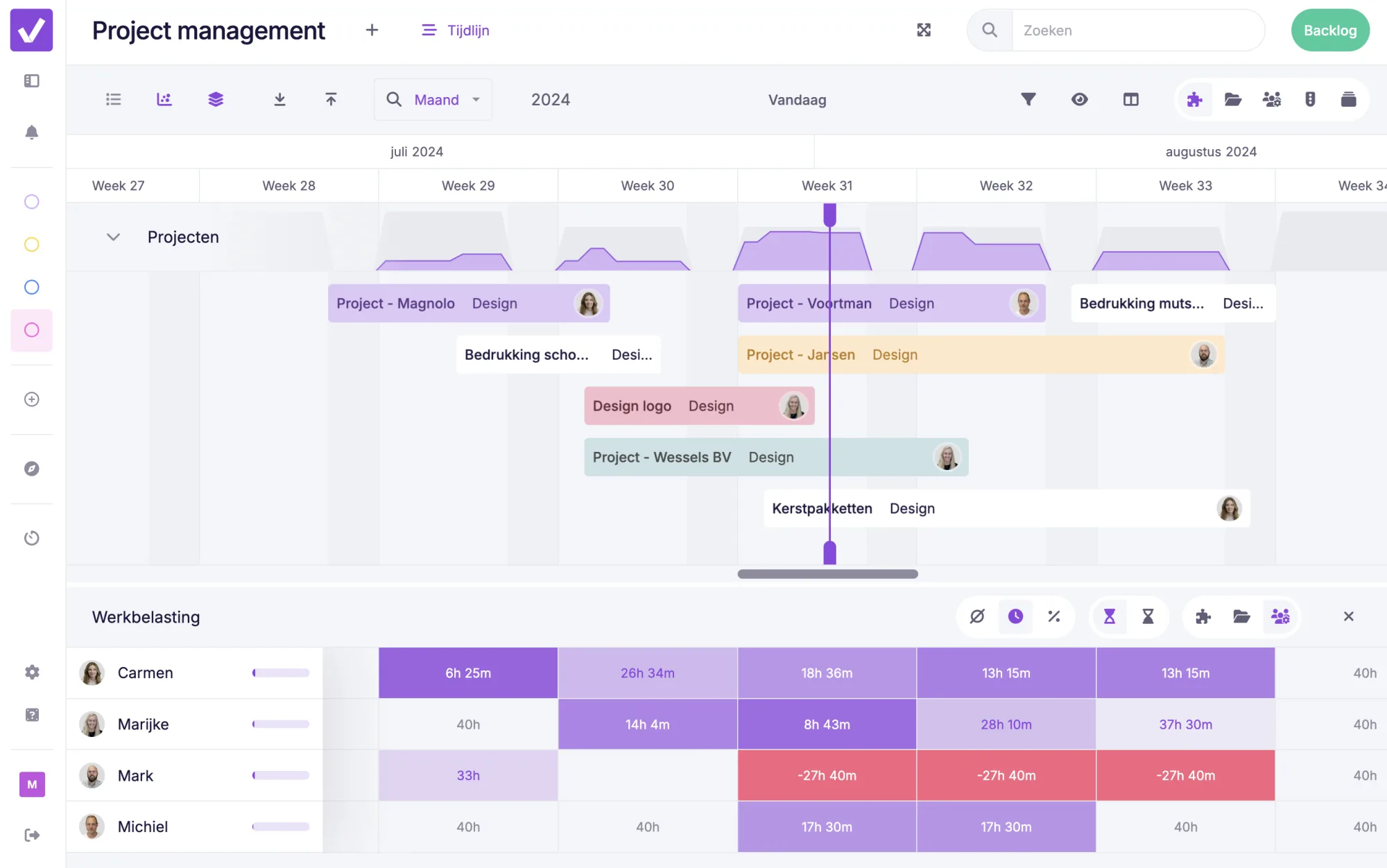
With our new Workload feature in vPlan, you gain better insights into your team's capacity, allowing for more efficient planning. View the schedule in relation to your workload in one overview. In this blog, we explain how to make the best use of the workload feature.
Organise your planning boards with workspaces 🚪
We proudly introduce the new feature: workspaces. With workspaces, you can categorise planning boards and create an overview. For example, do you work with multiple teams in vPlan? Then categorise the planning boards per team under a workspace. Another example: you work on large projects and use a separate planning board for each project. By placing these projects in a workspace, you get an organised folder structure.
Capacity Across Multiple Boards 👥
From now on, you can distribute your capacity across multiple boards within vPlan. This is especially useful if you work in multiple teams and need to divide your time across different tasks. Imagine being part of both the marketing team and the development team; with this feature, you can allocate your available hours to both teams without losing oversight.
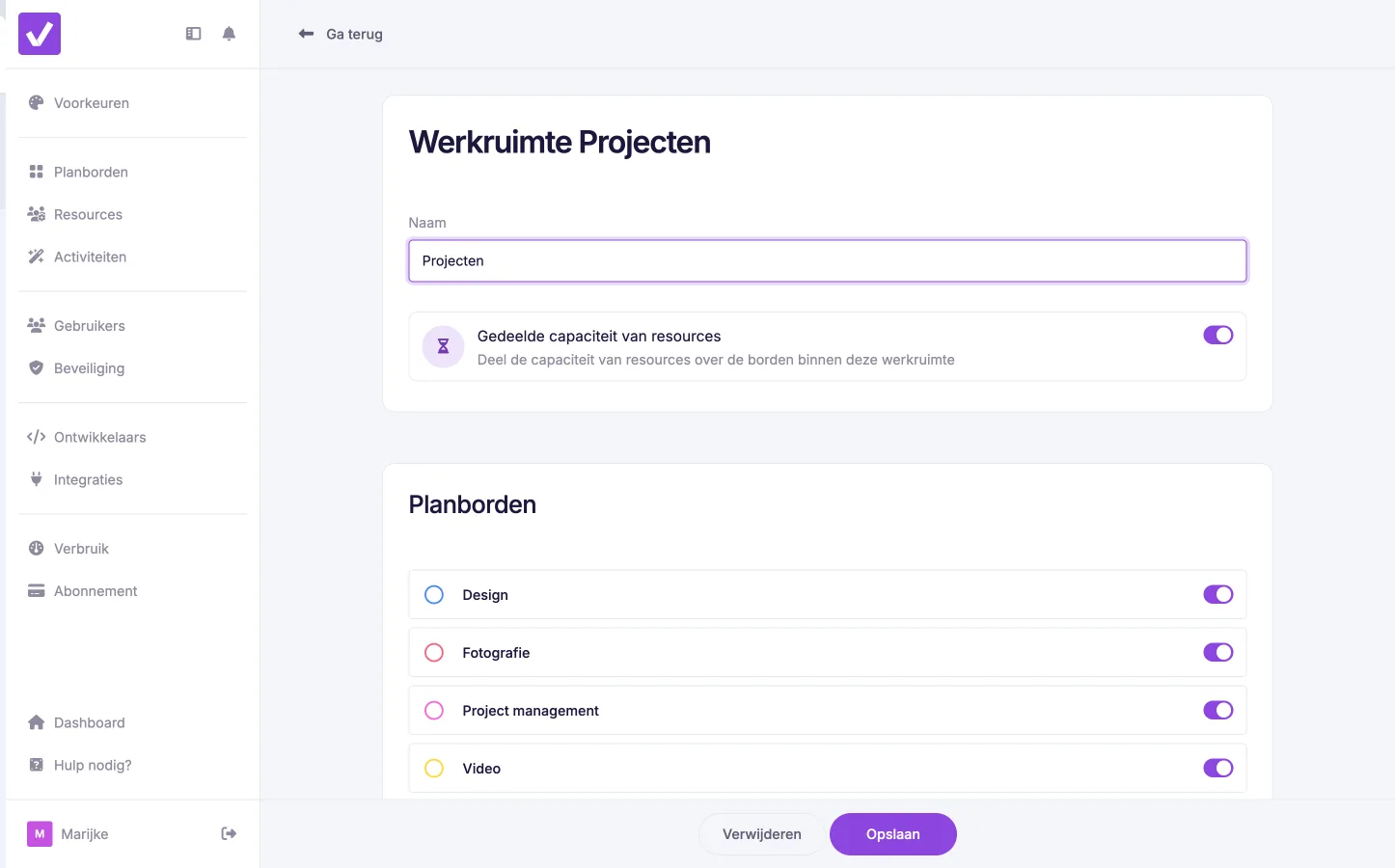
You can now easily distribute your resources' capacity across different planning boards within a workspace. When your workspace contains multiple planning boards, the scheduled capacity of a resource on one board also becomes visible on another. This provides you with a clear overview and enables you to utilise your resources more efficiently.
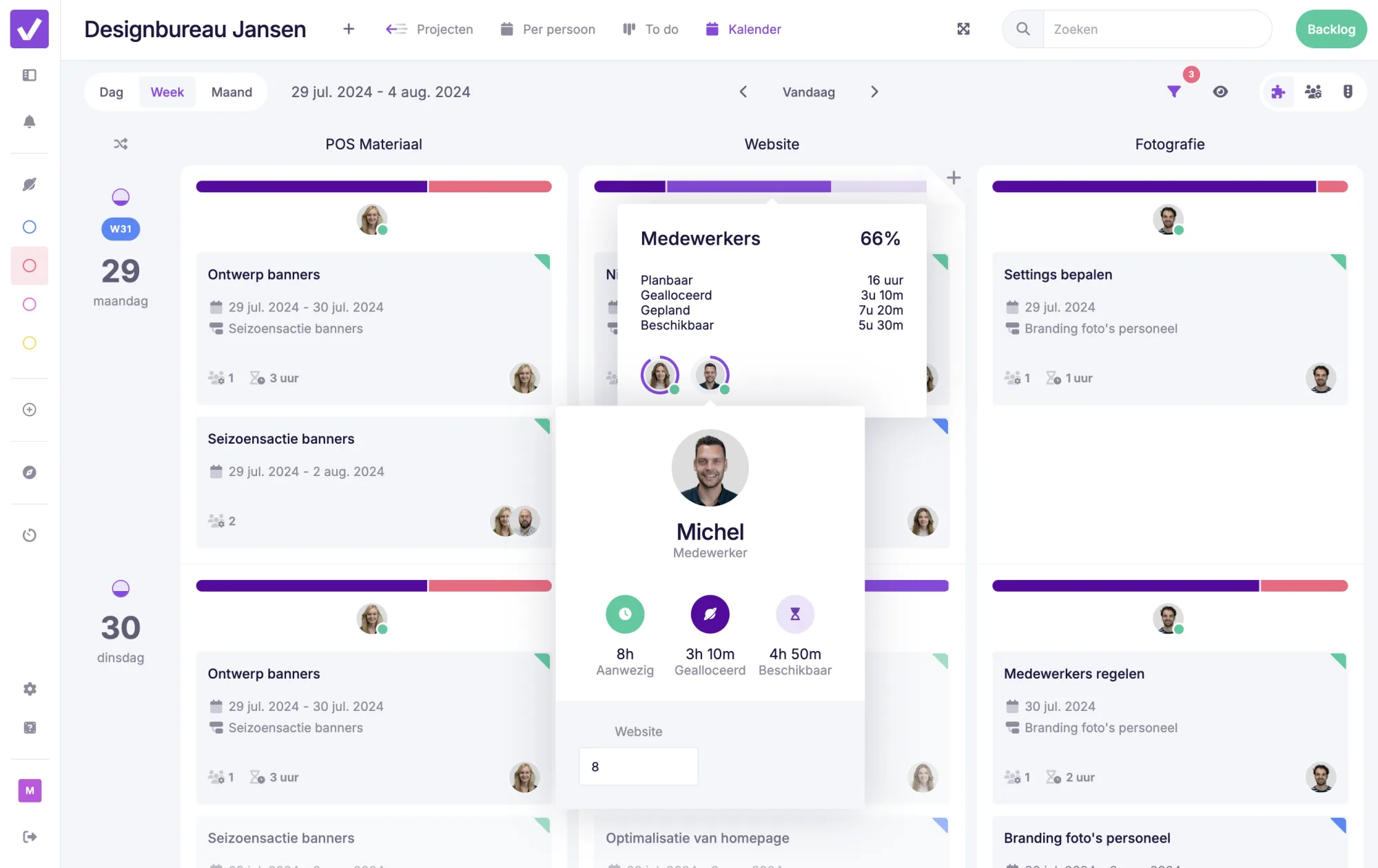
Thanks to the (purple) capacity bar in your planning board, you can see in real-time how much capacity is still available. The light purple colour represents the scheduled hours, and the dark purple colour shows the scheduled hours on another planning board. With this new feature, you keep your planning organised and prevent overloading your resources.
New Colours in the Timeline 🌈
Previously, the bars in the timeline took the colour of the card's status. Now, you can choose the colour of the bar yourself. The colour can be based on the label, the status, or the cover. Determine the source of the colour yourself by clicking on the eye icon within the timeline.
Easily Change the Name of a Collection 🗂️
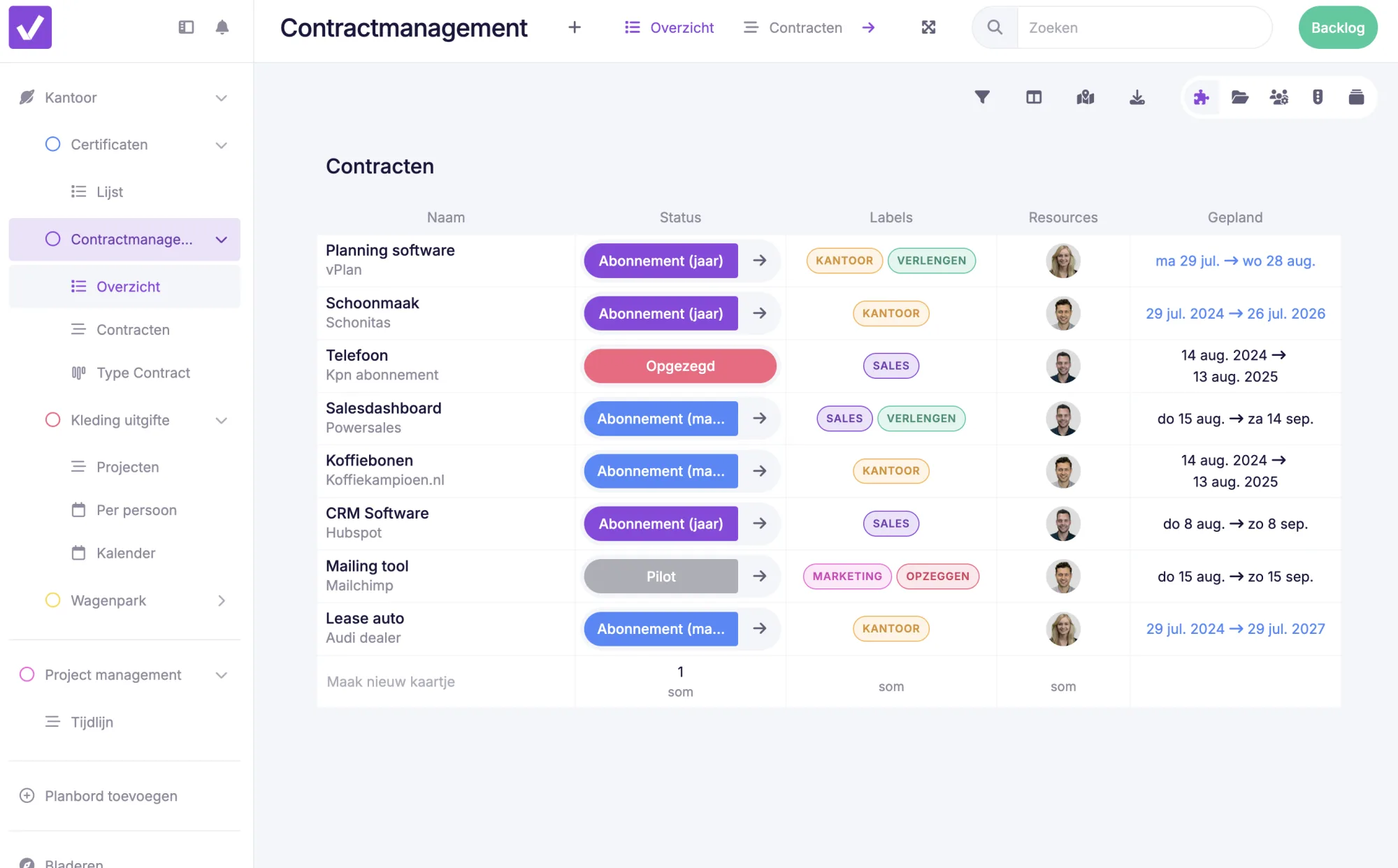
It is now possible to change the name of the main card within the timeline and list view without opening the card. A small change, but one that certainly won't go unnoticed.
Grant Access for External Support 🔓
Previously, you had to generate a support token for technical assistance. Now, you can easily grant access to your account, allowing our technical support team to directly view and address the issue within your account.
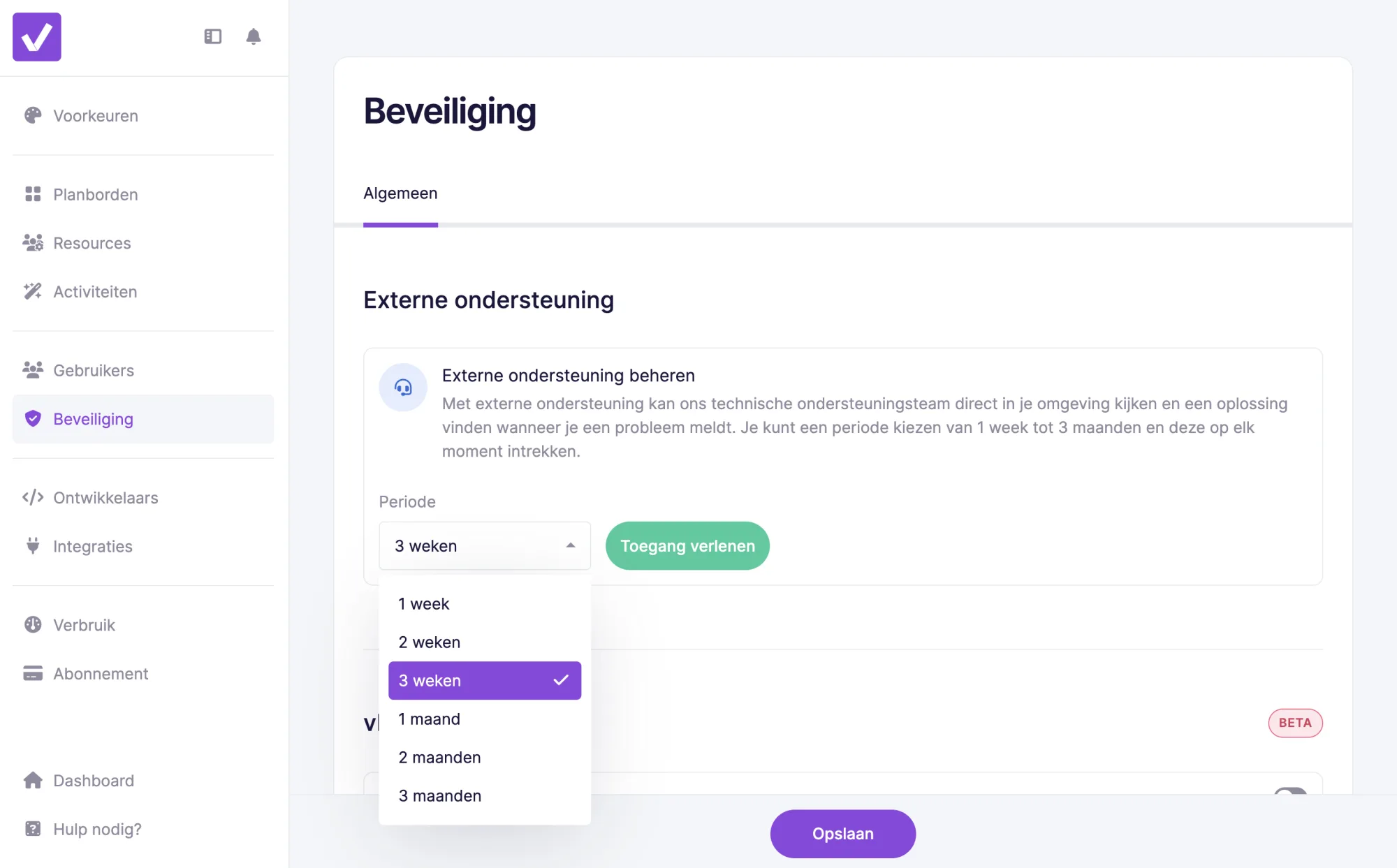
Open the menu and select our new menu item 'security'. Here, as an administrator, you can grant access for external support.
3 New Automations 🤖
We have introduced three new automations focused on time tracking, namely:
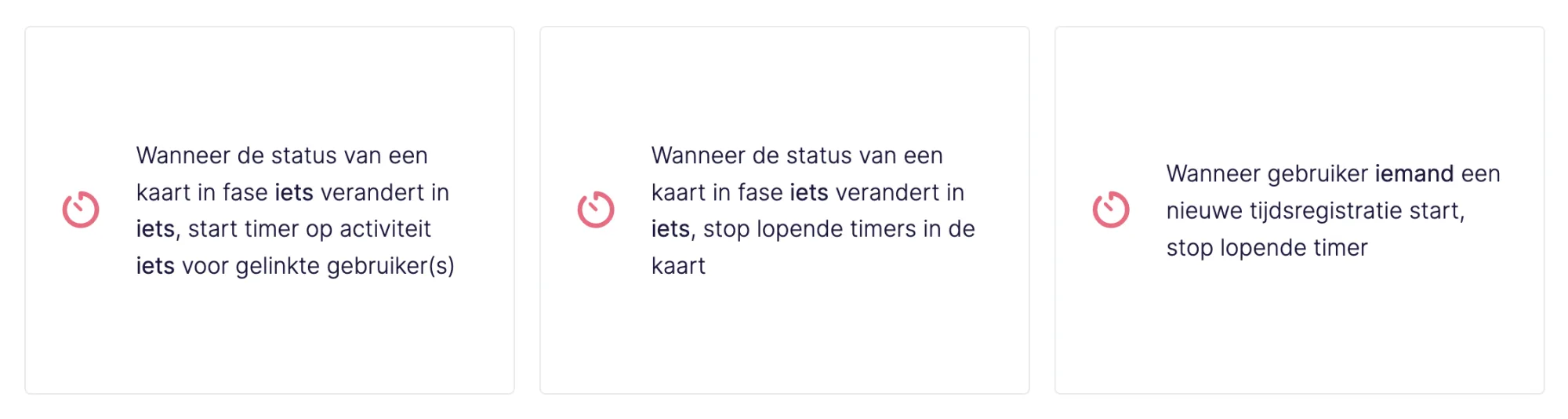
Let's take you through an example: you work in production and you have just completed the preparation. You change the status to ready, and the timer automatically starts for the correct employee within production.
Do you sometimes forget to stop the timer? Then this automation is perfect for you: for instance, always stop the timer 8 hours after starting. This ensures that the timer doesn't accidentally run all night.
These automations help you improve time efficiency and ensure you always have an accurate record of your working hours.
Get started with our latest features and make your workflows even more efficient. We are very curious about your experience. Let us know what you think of our new update or suggest new features via the support widget in vPlan or on the website. We look forward to hearing from you. 🙋🏼♀️
Try it in your own vPlan
Every new feature is in the free trial.