📆 New: Calendar Link
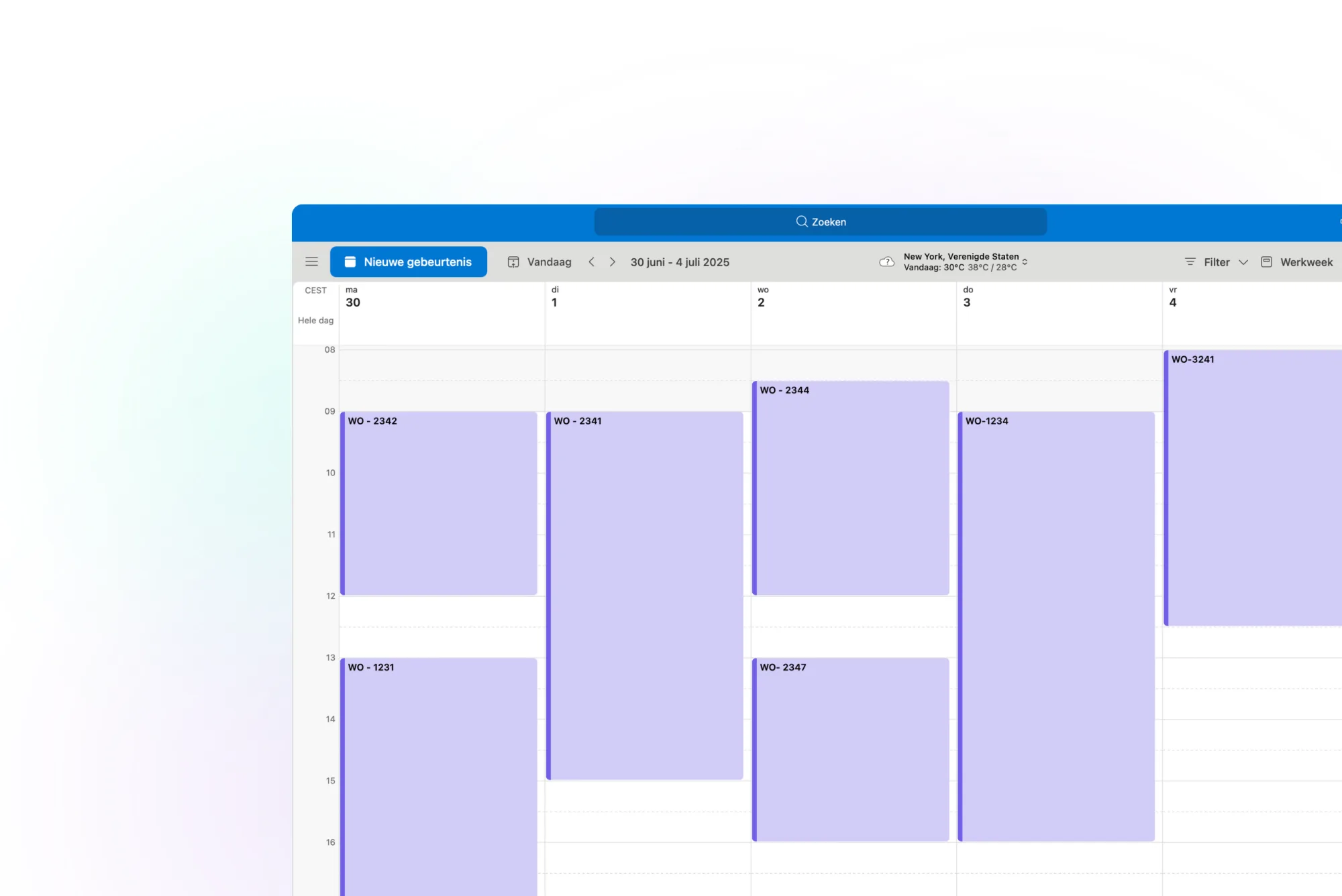
Automatically view your vPlan schedule in your own calendar, such as Google Calendar, Outlook, or Apple Calendar. All cards with a start and end time will automatically appear in your calendar—exactly as shown in your vPlan view, including your filters.
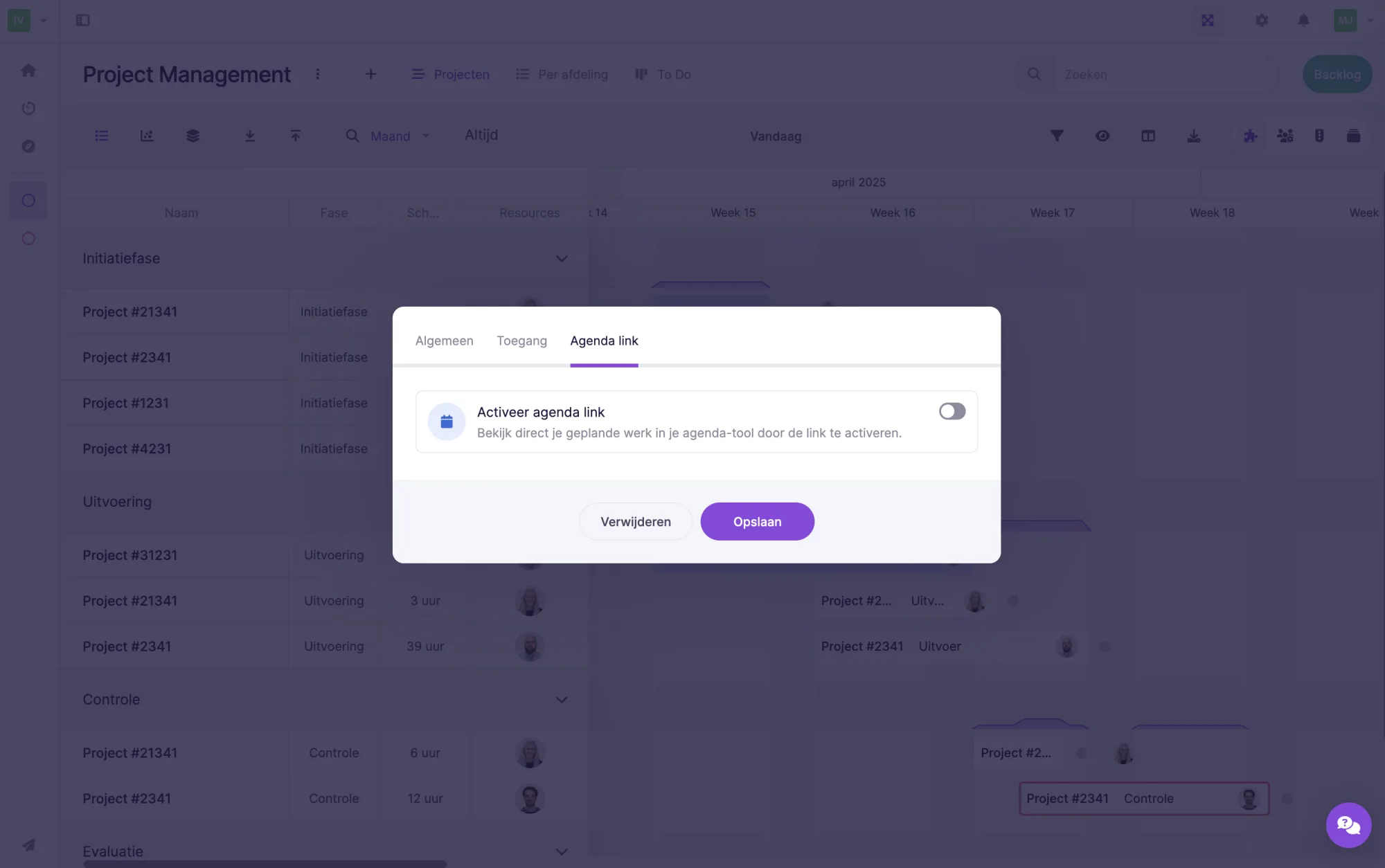
Here’s how to set it up:
Go to the view you want to link, click on its name, and enable the calendar link. vPlan will automatically generate a unique link. Add this link to your calendar app, and the vPlan cards will start appearing in your calendar right away.
Note: Available only in the Professional plan.
Want to learn more? Check our support article for step-by-step instructions for each calendar type.
🧩 New in vPlan Home: ‘See What’s Happening’
We’ve added a new widget to vPlan Home that gives you an instant overview of the latest activity. Here you’ll find all the most recent actions logged within a card—like scheduled cards, updated start dates, added resources, and more. You’ll see exactly who did what.
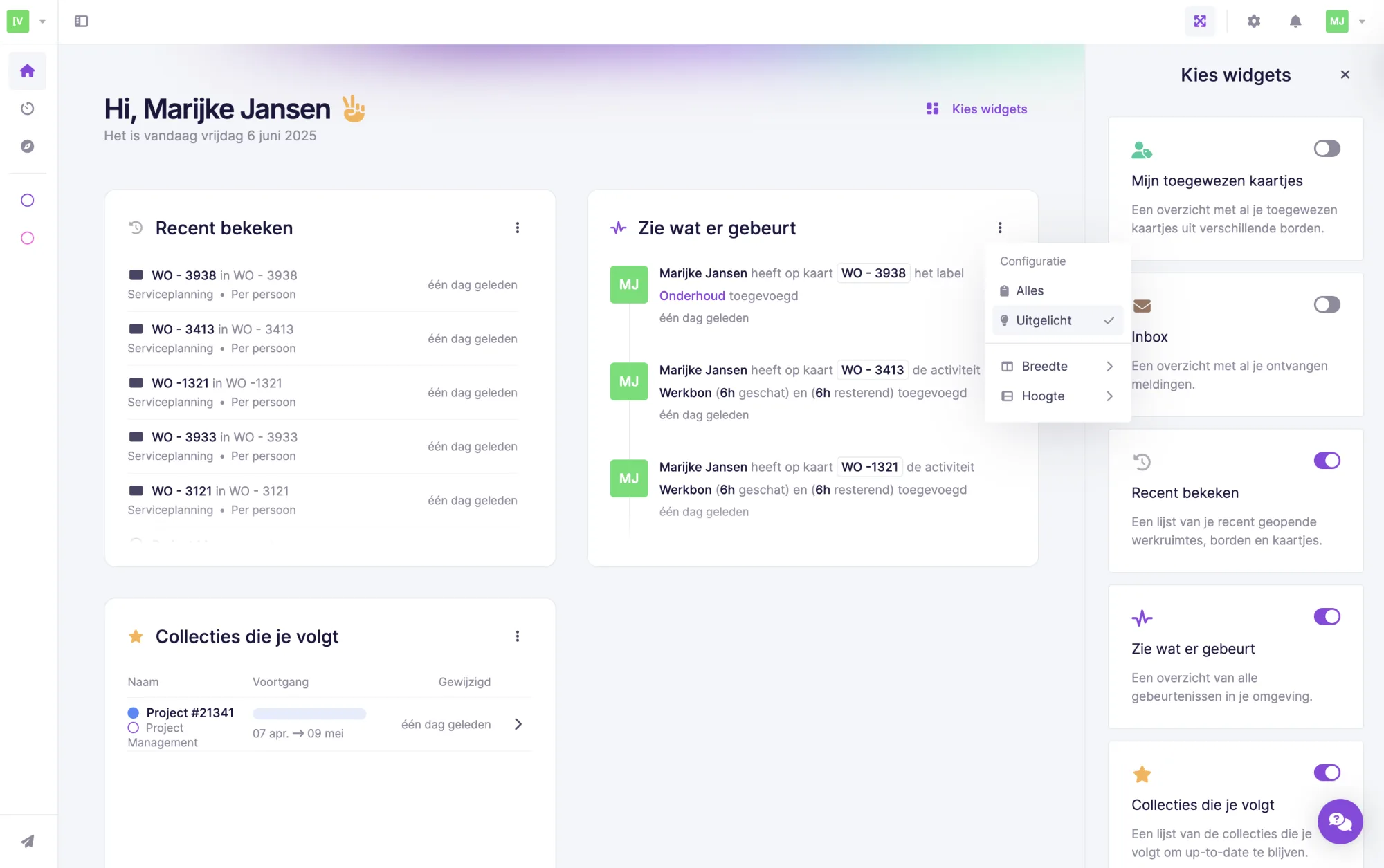
Bonus: You can also filter by highlighted changes. This will show only the most important updates, such as additions or removals in the planning. That way, you’ll always stay up to date on what’s new or changed.
🤖 New Automations
We’ve added two smart automations to vPlan:
Automation: When a card changes to status "X", change the status of all subcards to "X".
Automation: When a subcard changes to status "X", change the status of all subcards to "X".
For example, imagine you have a card with multiple subtasks like:
- “Write copy”
- “Select image”
- “Publish page”
Once you complete these steps and set the card to "Done", the new automation will automatically update the status of all subcards to "Done" as well. No need to open and update each one individually. This saves you manual work—especially when you’re working on multiple subcards at once.
Got ideas or requests for vPlan? Share them in our feature base! Your suggestion might be added to our roadmap soon. 🚀
Try it in your own vPlan
Every new feature is in the free trial.